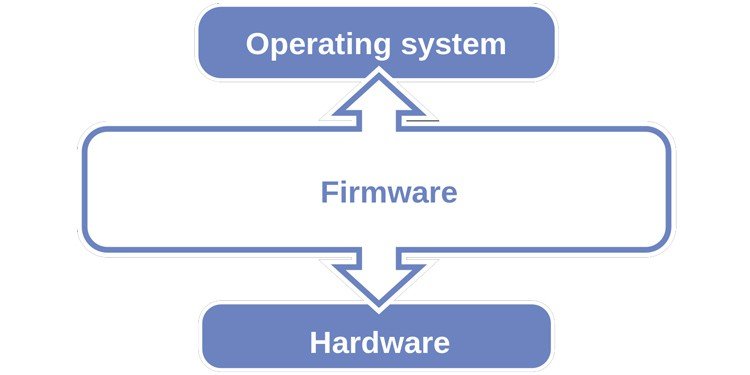
If you've ever felt your computer slowing down, glitching unexpectedly, or leaving you vulnerable to digital threats, you've likely encountered the silent culprits: outdated software. Ensuring drivers, firmware, and the operating system are updated isn't just a technical chore; it's the bedrock of a smooth, secure, and high-performing digital life. Think of your computer as a finely tuned machine; every component, from the engine (OS) to the specialized parts (drivers) and even the underlying blueprints (firmware), needs regular maintenance to run at its best. Neglecting these updates is like ignoring oil changes and tire rotations—eventually, things break down, performance tanks, and you're left stranded.
This guide will demystify the process, empower you with actionable steps, and show you why keeping everything current is one of the smartest things you can do for your devices.
At a Glance: Why Staying Updated Matters
- Fortified Security: Patch critical vulnerabilities that hackers exploit.
- Peak Performance: Enjoy faster speeds, smoother operations, and new features.
- Seamless Compatibility: Avoid frustrating conflicts with new software and hardware.
- Prevent Bugs & Crashes: Stabilize your system and reduce unexpected issues.
- Future-Proofing: Prepare your devices for emerging technologies and demands.
The Triad of Digital Health: OS, Drivers, and Firmware
Your computer's operational efficiency and security hinge on three distinct, yet deeply interconnected, layers of software: the Operating System (OS), device drivers, and firmware. Each plays a critical role, and neglecting any one of them can create a weak link in your system's chain.
Understanding the Operating System (OS)
Your OS—be it Windows, macOS, or Linux—is the master orchestrator. It manages all the hardware and software resources, provides the user interface, and handles fundamental tasks like file management and network communication. OS updates are typically the most visible and often the largest, bringing significant security patches, performance improvements, and sometimes entirely new features.
For instance, Windows updates might close critical security loopholes discovered by researchers or enhance how your system handles multitasking. Similarly, macOS updates often introduce new functionalities like improved privacy controls or refined app integrations. These aren't just minor tweaks; they're essential renovations that keep your entire digital infrastructure sound.
The Unsung Heroes: Device Drivers
Drivers are specialized pieces of software that allow your operating system to communicate with specific hardware components. Every piece of hardware in your computer—your graphics card, sound card, printer, webcam, and even your keyboard—has a driver. Without the correct driver, your OS wouldn't know how to interact with these devices, rendering them useless or severely limited.
Think of drivers as the language translator between your OS and your hardware. An outdated graphics driver, for example, might prevent you from playing the latest games, cause visual glitches, or even lead to system crashes. Updated drivers, conversely, can unlock new features, boost performance, and resolve compatibility issues, ensuring your hardware works in harmony with your OS and applications.
The Deepest Layer: Firmware
Firmware is a type of persistent software embedded in a hardware device. Unlike the OS or drivers, which are loaded from your hard drive, firmware lives directly on a chip within the device itself. It's the low-level code that tells the hardware how to operate. Everything from your motherboard (BIOS/UEFI) and solid-state drive (SSD) to your router, webcam, and even external peripherals like keyboards and mice, contains firmware.
Firmware updates are less frequent than OS or driver updates but are no less critical. They can improve hardware compatibility, fix fundamental bugs, enhance power efficiency, or even patch serious security flaws that operate at a deeper level than the OS can reach. For example, a motherboard firmware (BIOS/UEFI) update might be necessary to support a new generation of processors or to address critical system stability issues.
Why Keeping Them Current is Non-Negotiable
Ignoring update notifications might seem convenient in the short term, but it opens the door to a host of problems that can quickly turn your computing experience into a frustrating mess. As peiris.io notes, keeping software and drivers updated is "crucial for optimal performance, security, and compatibility."
Fortifying Your Digital Defenses (Security)
This is arguably the most critical reason to update. Software vulnerabilities are constantly discovered by cybersecurity researchers and, unfortunately, by malicious actors too. These "holes" in the code are potential entry points for hackers, allowing them to install malware, steal data, or take control of your system.
Updates, especially for your OS and web browser, frequently include security patches designed to close these vulnerabilities. Running outdated software is like leaving your front door unlocked in a bad neighborhood; it's an open invitation for trouble. As peiris.io emphasizes, updates "patch vulnerabilities exploitable by hackers and ensure antivirus/firewall software protect against threats." Staying current ensures your first line of defense is always up to date against the latest digital threats.
Unlocking Peak Performance (Performance)
Ever wonder why your once-snappy computer feels sluggish? Outdated software, particularly drivers, can be a major culprit. Developers are always optimizing their code, and updates often include performance enhancements that can lead to:
- Faster Loading Times: Applications and your OS boot up quicker.
- Increased Efficiency: Your system uses resources more effectively, leading to smoother multitasking.
- Better Hardware Utilization: Drivers get refined to squeeze more power out of your components, from your graphics card to your SSD.
- New Features: Updates frequently introduce new functionalities or refine existing ones, making your software more powerful and user-friendly.
Imagine upgrading your internet connection but having an old, slow router. Your internet speed will only be as good as your router allows. Similarly, updated drivers and OS features help all your components work together more efficiently, leading to a noticeable boost in overall system responsiveness. If you're struggling with a slow internet connection on your laptop, ensuring all your system components are updated can even make a difference in how efficiently your network adapter communicates, potentially helping you speed up laptop internet.
Ensuring Smooth Collaboration (Compatibility)
New hardware, new applications, and new OS versions are constantly emerging. Outdated software can struggle to communicate effectively with these newer components, leading to:
- Crashes and Freezes: Software conflicts can destabilize your system.
- Limited Functionality: Certain features might not work as intended.
- Installation Issues: New software might refuse to install on an outdated OS.
Updates ensure your system and its components play well together. They bridge the gaps between different versions of software and hardware, preventing frustrating compatibility issues and allowing you to enjoy the full potential of your entire digital ecosystem. This is especially true when it comes to third-party applications that rely on the underlying OS and driver architecture to function correctly.
Your Step-by-Step Guide to Staying Updated
Keeping everything current doesn't have to be a daunting task. Here’s a streamlined approach to managing your updates across operating systems, applications, and those crucial drivers and firmware.
1. Updating Your Operating System
The OS is your system's foundation, so keep it polished.
For Windows Users:
- Open Settings: Click the Start button (Windows icon) in the bottom-left corner.
- Navigate to Update & Security: Select the gear icon to open Settings, then choose "Update & Security."
- Go to Windows Update: On the left sidebar, click "Windows Update."
- Check for Updates: Click the "Check for updates" button. Windows will then download and install any available updates. You may be prompted to restart your computer.
For Mac Users:
- Open System Settings/System Preferences: Click the Apple menu in the top-left corner of your screen.
- Select System Settings (macOS Ventura or later) or System Preferences (earlier macOS versions).
- Go to Software Update: Click "General" then "Software Update" (for System Settings) or directly "Software Update" (for System Preferences).
- Check for Updates: Your Mac will automatically check for available updates. Click "Update Now" or "Upgrade Now" if an update is found.
2. Updating Your Applications (Third-Party Software)
Most modern applications have built-in update mechanisms.
- In-App Update Options: Many applications, like web browsers (Chrome, Firefox, Edge) or office suites, have an "About" or "Help" menu option that allows you to "Check for Updates."
- Automatic Updates: Enable automatic updates whenever possible. Browsers are particularly good at this, often updating silently in the background.
- App Stores: If you installed an app through a digital store (like the Microsoft Store or Apple App Store), check the "Updates" or "Library" section within the store itself.
- Developer Websites: For some specialized software, you might need to visit the developer's official website to download the latest version.
3. Updating Device Drivers
This is where things can get a little more specific, but it's generally straightforward.
For Windows Users (Manual Approach):
- Open Device Manager: Right-click the Start button and select "Device Manager."
- Expand Categories: In the Device Manager window, you'll see a list of hardware categories (e.g., "Display adapters," "Sound, video and game controllers"). Expand the category for the device you want to update.
- Update Driver: Right-click on the specific device (e.g., your graphics card) and select "Update driver."
- Search for Drivers: Choose "Search automatically for updated driver software." Windows will then search your computer and the internet for the best available driver. If a newer driver is found, it will install it.
- Pro Tip: Sometimes, Windows' automatic search doesn't find the very latest driver. For critical components like graphics cards (NVIDIA, AMD, Intel) or specialized peripherals, visiting the manufacturer's website directly is often the best way to get the most recent, optimized drivers.
For Mac Users:
Generally, macOS handles device drivers automatically through its system software updates. As peiris.io notes, "Drivers are generally updated with system software updates; ensure macOS is current." Keeping your macOS updated (as described in step 1) is usually sufficient. However, for specific professional-grade peripherals or external devices, their manufacturers might offer dedicated macOS drivers on their support websites.
4. Updating Firmware
Firmware updates are distinct and less frequent, typically handled in specific ways depending on the device.
- Motherboard (BIOS/UEFI): This is usually done by downloading the firmware file from your motherboard manufacturer's website, placing it on a USB drive, and then accessing your BIOS/UEFI settings during boot-up to initiate the update. Always follow the manufacturer's instructions precisely, as incorrect firmware updates can "brick" your motherboard.
- SSDs/HDDs: Many storage drive manufacturers provide their own utility software that can check for and apply firmware updates.
- Peripherals (Webcams, Keyboards, Mice, etc.): Check the manufacturer's support page for specific software or instructions.
- Network Routers/Modems: Access your router's administration interface via a web browser (usually by typing its IP address, like 192.168.1.1, into your browser) and look for a "Firmware Update" section.
The Role of Windows Update in Firmware Management
Microsoft has made strides in integrating firmware updates directly into Windows Update, especially for devices within your system. As learn.microsoft.com explains, "Windows Update (WU) can be used to update removable or in-chassis device firmware by providing a device driver that includes the firmware payload."
This means that for many modern devices, particularly those that come pre-installed in a Windows PC or are widely supported, you might receive firmware updates alongside your regular Windows updates. This is achieved by device manufacturers packaging the firmware update as part of a specialized driver. This "firmware update driver" is designed to hand the new firmware to Plug and Play (PnP) for installation, rather than Windows Update executing it directly.
How it works (Simplified):
- A device manufacturer creates a "lightweight firmware update driver" package.
- This package contains the new firmware binary and an INF file that tells Windows how to install it.
- Windows Update delivers this driver package to your system.
- When Windows installs the driver, the driver identifies the device, checks its current firmware version, and, if necessary, schedules and performs the firmware update.
This seamless approach is a huge benefit for users, as it simplifies a historically complex process. You typically don't need to do anything extra; just ensure your Windows Update is running regularly.
Best Practices for a Seamless Update Experience
Updating can sometimes feel like a chore, but adopting these best practices will make the process smoother and safer.
Schedule Regular Checks
Don't wait for problems to arise. Make updating a routine. "Set a Reminder: Schedule regular checks (weekly or monthly)," suggests peiris.io. A quick check once a week or monthly can save you hours of troubleshooting later.
Enable Automatic Updates
For essential software and your operating system, automatic updates are your best friend. This ensures critical security patches are applied promptly without you having to remember. Most modern operating systems and web browsers offer this feature. While sometimes inconvenient if an update forces a restart, the security benefits far outweigh the minor disruption.
Back Up Your Data
Before any significant OS or firmware update, always, always, always back up your important data. While updates are generally safe, unforeseen issues can occur, and having a recent backup is your ultimate safety net against data loss. "Backup Your Data: Perform backups before significant updates to prevent data loss," is a crucial piece of advice from peiris.io.
Stay Informed
Follow technology news or subscribe to newsletters from your hardware and software manufacturers. Being aware of critical updates or known issues before they affect you can save you headaches. Major security vulnerabilities, for instance, are often widely reported, giving you a heads-up to update immediately.
Declutter: Uninstall Unused Software
The more software you have, the more updates you'll need to manage, and the more potential points of failure exist. Regularly review your installed applications and uninstall anything you no longer use. As peiris.io recommends, "Uninstall Unused Software: Reduce the number of applications requiring updates." This not only lightens your update load but also frees up disk space and potentially improves system performance.
Navigating the Challenges of Updating
While updates are vital, they aren't without their occasional quirks. Knowing what to expect can help you mitigate potential issues.
Compatibility Conundrums
Sometimes, a new update can conflict with existing hardware or software. This is a common challenge, as peiris.io highlights: "Compatibility Issues: New updates may conflict with existing hardware or software; check system requirements." For example, a new graphics driver might introduce glitches with an older game, or an OS update might break a niche, legacy application.
How to handle it:
- Read Release Notes: Before major updates, quickly scan the release notes for known issues.
- Check Forums: If you experience an issue, a quick search on forums related to your hardware or software can often reveal if others are facing similar problems and if a solution or workaround exists.
- Roll Back or Delay: Most operating systems offer an option to roll back an update if it causes severe issues. Sometimes, delaying an update for a few days can allow early adopters to surface and resolve initial bugs.
The Time Sink
Updating multiple applications, drivers, and your OS can indeed take time, especially if you haven't done it in a while. "Time Consuming: Updating multiple applications can take time; prioritize updates to minimize disruption," advises peiris.io.
How to handle it:
- Schedule Wisely: Perform updates during off-peak hours, like overnight or when you're taking a break.
- Prioritize: If you're short on time, prioritize critical security updates for your OS and web browser.
- Automate: Enable automatic updates for as many components as possible to spread the load.
Internet Connectivity Roadblocks
Updates require downloading files, often large ones. A slow or unstable internet connection can prolong the process or cause failures. "Internet Connectivity: Updates require a stable internet connection; consider updating during off-peak hours if connections are slow," suggests peiris.io.
How to handle it:
- Stable Connection: Ensure you have a reliable internet connection. If you're on Wi-Fi, move closer to your router or use an Ethernet cable if possible.
- Off-Peak Downloads: If your connection is consistently slow, consider initiating large downloads during times when fewer people are using your network or when your ISP might have less traffic.
The Horizon of Updates: What's Next?
The future of updates promises to be even more streamlined and intelligent, shifting towards a more "set it and forget it" experience. As peiris.io predicts:
- Seamless Updates: Expect "more seamless updates with less user intervention." This means updates that install silently in the background, perhaps even while you're working, minimizing interruptions. Technologies like A/B (Active/Backup) partitioning in some mobile OSes allow updates to be installed on a separate, inactive partition, then swapped over on the next reboot, resulting in minimal downtime.
- AI-Assisted Recommendations: "AI-assisted recommendations based on user behavior" could personalize update schedules or even suggest specific driver optimizations based on how you use your system. Imagine your computer intelligently prioritizing a graphics driver update if it detects you've started playing a new, demanding game.
- Enhanced Proactive Security: "Enhanced security features focusing on proactive measures against cybersecurity threats" will go beyond just patching known vulnerabilities. This could involve more advanced threat prediction, real-time behavioral analysis to detect zero-day attacks, and more integrated security layers across the OS, drivers, and even firmware.
These advancements aim to make system maintenance effortless, allowing you to focus on your tasks while your device discreetly manages its own health and security.
Your Proactive Approach to a Healthier Device
Maintaining updated drivers, firmware, and your operating system isn't just a recommendation; it's a fundamental practice for anyone who relies on their computer. It's the simplest, most effective way to protect your digital life, ensure your hardware performs at its peak, and keep frustrating compatibility issues at bay.
By embracing regular updates, enabling automatic installations, backing up your data, and staying informed, you're not just preventing problems—you're actively enhancing your computing experience. You're building a resilient, high-performing system that can keep up with the demands of modern software and the evolving threat landscape. So, take a few moments today to check for those pending updates. Your future self (and your computer) will thank you for it.